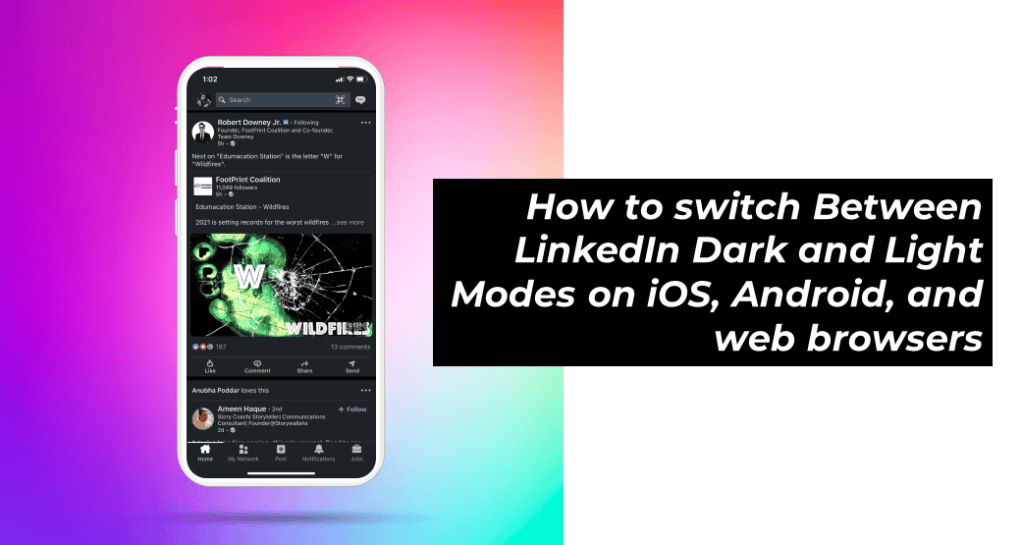
On 13th September 021, LinkedIn rolled out dark mode worldwide giving its users the flexibility to choose between light and dark themes as per preference.
Facebook and Twitter had embraced the dark theme much earlier. The dark mode option is meant to make reading texts easier for its users along with the additional benefits of saving battery life.
Please note this theme is device-specific and not profile specific.
Enough said, here is a quick help on how to turn on or switch between the dark and light modes from your LinkedIn profile:
On iOS:
- Log in to your LinkedIn profile and choose the profile picture from the top left corner of your LinkedIn homepage.
- Click Settings from the top left options.
- Under Account Preferences, click Display.
- In the Display section, click Change next to Dark Mode.
- From here you can switch between:
- Device setting: This is selected by default for members who have dark mode enabled on their device.
- Dark mode: To switch to dark mode.
- Light mode: To switch to light mode
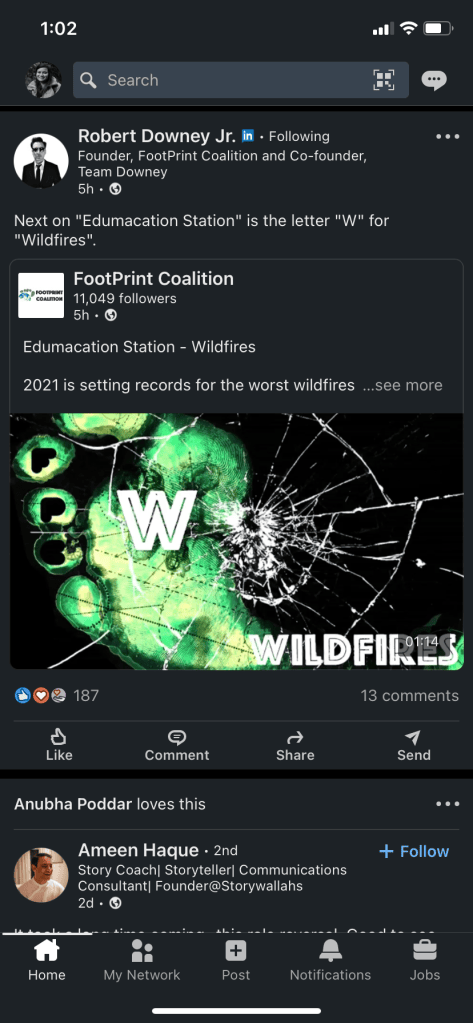
LinkedIn dark mode on iOS
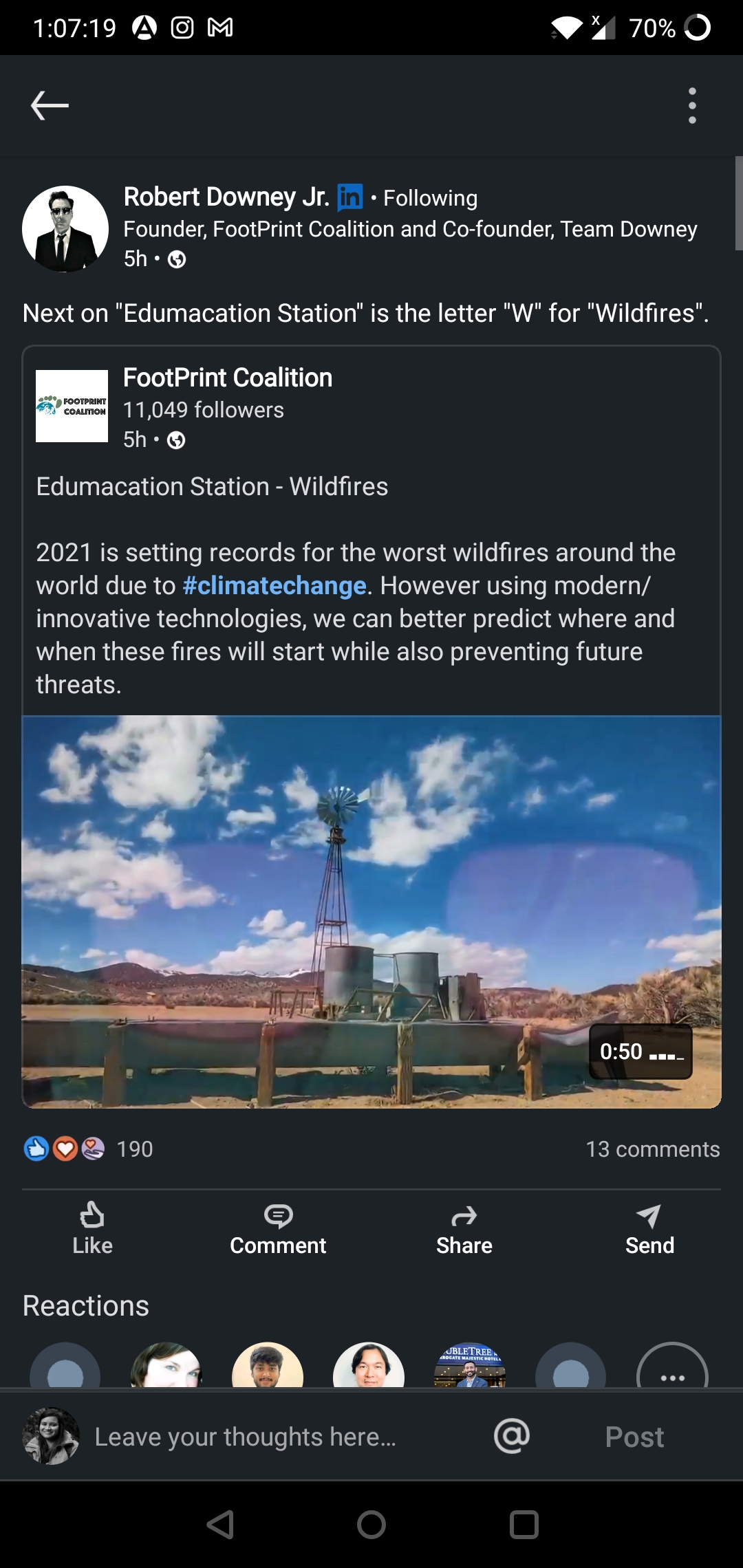
On Android:
- Log in to your LinkedIn profile and choose the profile picture fromthe top left corner of your LinkedIn homepage.
- Click Settings from the top left options.
- Under Account Preferences, click Display.
- In the Display section, click Change next to Dark Mode.
- From here you can switch between:
- Device setting: This is selected by default for members who have dark mode enabled on their device.
- Dark mode: To switch to dark mode.
- Light mode: To switch to light mode
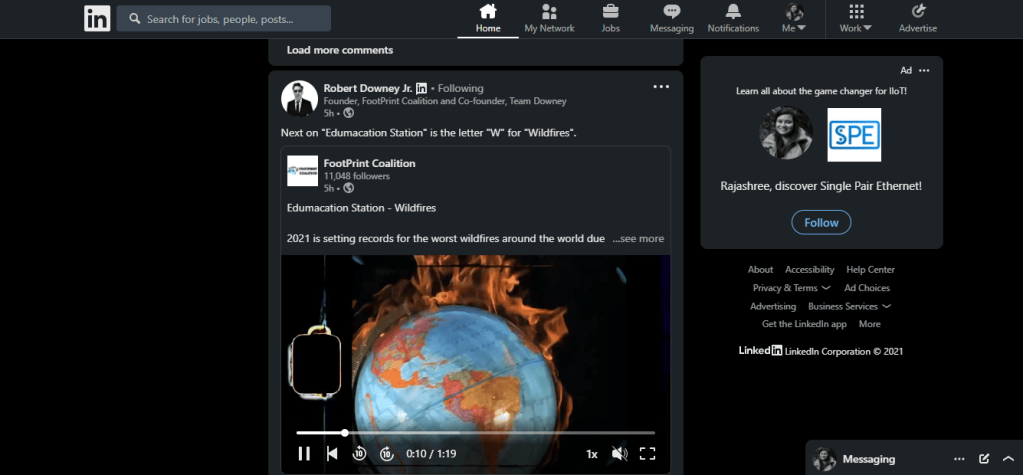
On website browsers:
- Log in to your LinkedIn profile and choose the Me icon at the top of your LinkedIn homepage.
- Go to Settings & Privacy from the dropdown menu.
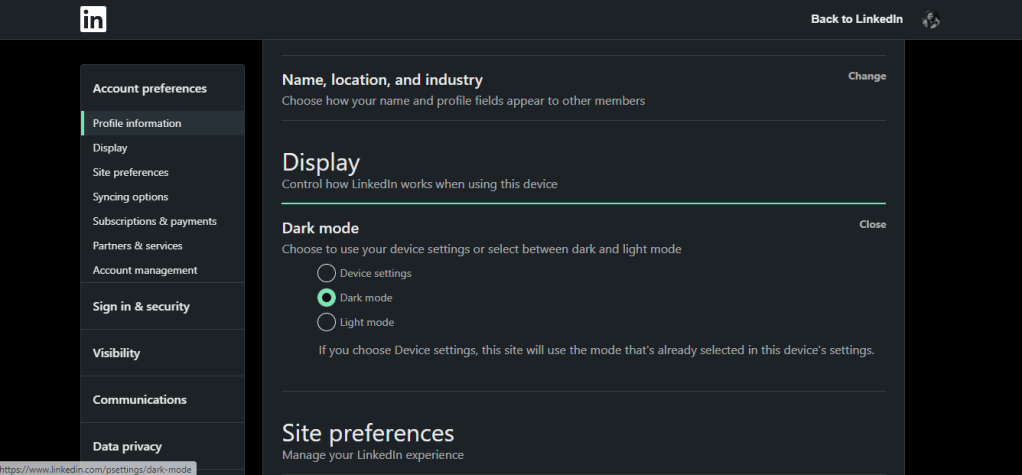
- Under Account Preferences on the left, click Display.
- In the Display section, click Change next to Dark Mode.
- From here you can switch between:
- Device setting: This is selected by default for members who have dark mode enabled on their device.
- Dark mode: To switch to dark mode.
- Light mode: To switch to light mode


Leave a comment